


Confidentality
All information within this document is strictly confidential and must not be passed to 3rd parties without the prior consent of GeneSys Elektronik GmbH and Stähle.
Introduction to the Stähle integration
This article shows the configuration of the ADMA for using Stähle robots.
ADMA Configuration for AB Dynamics platforms
Connect to the ADMA Web Interface
To access the ADMA web interface for the first time, ensure your PC is configured with an IP address in the 192.168.88.x range. Then, open a browser and enter the following IP address:
Default (Fallback) IP-Address: 192.168.88.30
Default Subnet mask: 255.255.255.0
Data Link

Configure the CAN interface with the following parameters:
| Base ID: | 100 dec |
| CAN Baudrate: | 1000 kBaud |
| CAN Termination: | Off |


Data

Configure the CAN data output with the following parameters:
| Data rate: | 100 Hz |
| Coordinate system: | ISO 8855 |
| Data Format Version: | v3.3.x |

CAN Data Packets
Add all necessary CAN data packets of the ADMAnet data stream by executing Add SD-Robot data packets below the data packet table.

The following data packets will get enabled:
- Status and Error
- INS Angle + GNSS-COG
- INS Position absolute POI1
- INS Time (UTC)
- INS Velocity (Horiz.) POI1
- Miscellaneous POI1
- Acceleration (Body) POI1
- Rates (Horiz.)
- Delta Resultant (Optional)
Parameter

The Parameter page of the ADMA web interface is the only section that must be configured differently for each vehicle. Please ensure you configure the correct mounting offset values between ADMA and GNSS antenna.
| Min. velocity for AutoInit: | 1 m/s |
| Min. velocity for heading ctrl.: | 3 m/s |
| Mounting Offsets (POI 1): | Vehicle Center of Mass |
Finish Setup and start Measurement

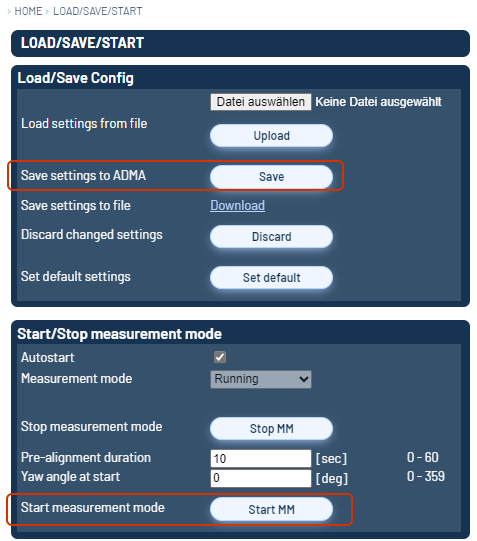
Save the settings to the ADMA and start the measurement.